Showing posts with label iOS 6. Show all posts

2013/03/25

Tips to Extend iOS 6 iPhone Battery


Tips to Extend iOS 6 iPhone Battery. Many iPhone users complained about the batteries that do not last for long time. It is still unclear if this issue caused either by bugs or the iOS 6. Many possibilities causing the battery does not last for long time, such as the intensity of iPhone using, the almost worn-out battery, and jailbreaking. Here are tips to extend your iPhone battery:

1. Turn on Auto-Brightness
Find it in the Settings app -> Brightness & Wallpaper -> Auto-Brightness On

2. Reduce Screen Brightness
Find it in Settings -> Brightness & Wallpaper

Find it in Settings -> Brightness & Wallpaper

3. Turn Bluetooth Off
Find it in Settings -> Bluetooth -> Move Slider to Off

4. Turn Off 3G/4G
Find it in Settings -> General -> Cellular -> Slide Enable 3G to Off on some models or Enable LTE to Off

5. Keep Wi-Fi Off
Find it in Settings -> WiFi -> Slide to Off

6. Turn Off Location Services
Find it in Settings -> Privacy -> Location Services -> Slide to Off

7. Turn Data Push Off
Find it in Settings -> Mail, Contacts, Calendar -> Fetch New Data -> Slide to Off

8. Fetch Email Less Often
Find it in Settings -> Mail, Contacts, Calendar -> Fetch New Data -> Select Your Preference

9. Auto-Lock Sooner
Find it in Settings -> General -> Auto-Lock -> Tap your Preference

10. Turn off Equalizer
Find it in Settings -> Music -> EQ -> Tap off

11. Do Less-Battery-Intensive Things
Browsing the web, games, and movies are the things that suck the most battery, avoid those things.

12. Sleep and Wake Less
Since putting your iPhone to sleep and wake will drain  your battery, avoid this.

13. Buy an Extended Life Battery
Do this in case the other tips do not work.

14.Turn Off Other Location Settings
Find it in Settings -> Privacy -> Location Services -> System Services -> Turn off Diagnostics & Usage, Location-Based iAds, and Setting Time Zone


How to Install Appsync in iOS 6.1.2


1. To install Appsync, you have to jailbreak your iPhone first.
2. After the jailbreaking done, open Cydia, tap Source-Edit-Add-add Repo.HackyouriPhone.org-Done
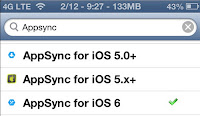
3. Tap Search-Type Appsync-Appsync for iOS 6

4. After you choose, Tap your choice (i.e. Appsync for iOS 6 from Repo.HackyouriPhone.org)-Tap Install in the right above corner, and wait for the installation process to be done.
5. Reboot your iDevice. The you are allowed to install cracked app that you have downloaded.
How to Install Appsync in iOS 6.1.2. Appsync is a tweak that can be downloaded and installed through cydia. The main function of Appsync is enabling the users to install/synchronize cracked app in iPhone, iPad, and iPod with the same quality as AppStore freely. Appsync becomes the most reason to jailbreak the iDevices.
Here are the steps to install Appsync:
Note: Appsync doesn't have icon that appears in your Springboard or Homescreen.

2013/02/17

How to Jailbreak iPhone Using Redsn0w


Redsn0w is a great tool. Even before final version of iOS 6.1 was released, this tool had been able to Jailbreak Tethered in iOS 6.1 Beta version in iDevice A4. If you have upgraded your iPhone 3Gs, 4, iPod 4G to final version of iOS 6.1, you can do Tethered Jailbreaking using Redsn0w; at least it can reduce your Jailbreak addiction while waiting for Jailbreak Evad3rs to be released.
To download iPSW iOS 6.1 file, please follow this link: iOS 6.1 is Breaking iOS 6.O History Record
When iOS 6.1 UnTethered Jailbreak is released, you still have to restore your iPhone through iTunes to clean Tethered Jailbreak (Clean Restore) and you can do Jailbreaking again.
Note: Remember that this tutorial is for iPhone 3Gs, 4 and iPod 4G only.
It is better to backup all of your data through iTunes before you do Jailbreaking. To backup your data through iTunes, follow the steps below:
  1. Connect your device to PC/laptop and open iTunes
  2. Let iTunes detect your device
  3. Right click on your device in the left sidebar of iTunes
After you backup your data, follow the steps below to do iOS 6.1 Tethered Jailbreak:
Step 1: download Redsn0w 0.9 15b3 for Windows/Redsn0w 0.9 15b3 for Mac (Win / Mac)
Step 2: run Redsn0w by right clicking and ‘Run as Administrator’
Step 3: before you do Jailbreaking, it is better to position your device in DFU Mode, to enter DFU Mode, please follow the link below
How to Enter DFU Mode Using Redsn0w
How to Enter DFU Mode in Iphone, iPad, iPod Manually
Step 4: click ‘Jailbreak’ button
Step 5: click ‘next’
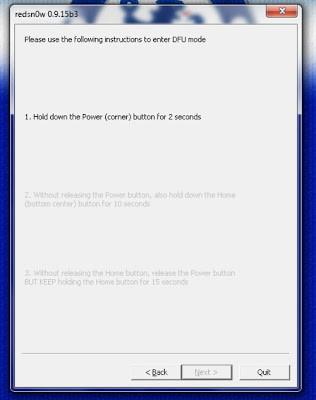
Step 6: if your iPhone is in DFU Mode, you can skip this step and your iPhone will be directly exploited by LimeRa1n. To enter DFU Mode, follow the steps given.
  1. Hold down the Power button for 3 seconds.
  2. Without releasing the Power button, also hold down the Home button for 10 seconds
  3. Without releasing the Home button, release the Power button BUT KEEP holding the Home button for 15 seconds.
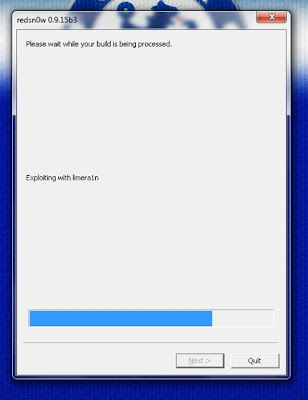
Step 7: Redsn0w will Exploit your device with LimeRa1n and then it will ‘prepare the Jailbreak data’.
Step 8: don’t forget to check ‘Install Cydia’
Step 9: your iPhone will reboot and start ‘uploading the new RAM Disk and Kernel’
Step 10: if the process finishes, Redsn0w will notify. Congratulation, your iPhone is Jailbroken.
Since the Jailbreak is Tethered, you have to do JustBoot in iPhone 3Gs, 4, iPod 4G to turn it on.

How to Enter DFU Mode Using Redsn0w


DFU Mode is a necessary state to Restore or Jailbreak using certain tool like Redsn0w. if you find difficulties entering DFU Mode manually, follow the step below to enter DFU Mode manually:
Redsn0w is multi functions tool, such as Jailbreak, Upgrade iOS Preserve Baseband  for iPhone SU and guide you to bring your iPhone, iPad, and iPod into DFU Mode. Here, I talk about DFU pwnd function or entering DFU Mode. Differs from other tools (like Absinthe), Redsn0w only has one button, namely Jailbreak.
I suggest you to enter DFU Mode first, before you Jailbreak your iPhone using Redsn0w or Sn0wBreeze, in order to make the Jailbreak or Restore process easier. Most Restore process failures happen because the iPhone is not in DFU Mode.
Entering DFU Mode Using Redsn0w
step 1: download Redsn0w here Redsnow 0.9.15b3 for Windows – Redsnow 0.9.15b3 forMac.
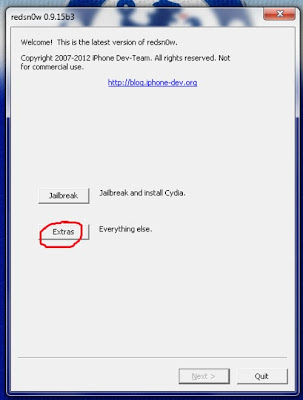
Step 2: open Redsn0w and click ‘extras’
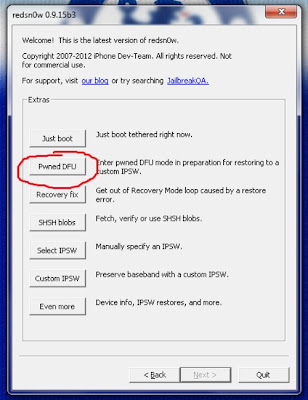
Step 3: click pwnd DFU
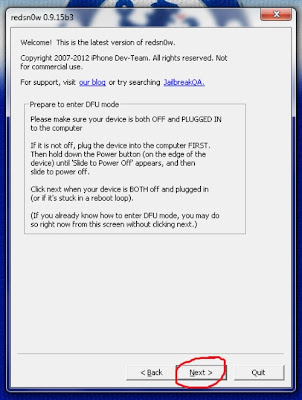
Step 4: click ‘next’
Step 5: this step is very important, please be careful in following the instructions given to enter DFU Mode successfully.
  1. Hold down the Power button for 3 seconds.
  2. Without releasing the Power button, also hold down the Home button for 10 seconds
  3. Without releasing the Home button, release the Power button BUT KEEP holding the Home button for 15 seconds.
Step 6: if you follow the steps properly, Redsn0w will automatically Exploit your iPhone using LimeRa1n.
step 7: Now your iPhone is in DFU Mode and ready to be Jailbroken or Restored.

2013/02/16

How to Jailbreak iOS 6 Using EvasiOn


How To Jailbreak iOS 6 Using Evasi0n. For iPhone, iPad, and iPod users, Jailbreak becomes interesting when they get bored with their common apps and want to start using new apps from outside App Store. There are many tools to Jailbreak iDevice, such as RedSnow and Evasi0n.
Evasi0n is a tool to Jailbreak iDevice that run iOS 6. This tool is compatible with iPhone 5, 4S, 3GS, iPad mini, 4, and New iPad. It is easy to Jailbreak iDevice using Evasi0n, here are the steps:
  1. Download Evasi0n for Windows here, for Mac here.
  2. Run Evasi0n
  3. Connect your iDevice (iPhone 5/4S/3GS/iPad mini/4/New iPad) to PC/laptop. Don’t forget to disable Passcode Lock.
  4. Let Evasi0n detect your device
  5. Tap the Jailbreak button
  6. When the Jailbreaking process is in progress, don’t do anything with you device, your device will reboot.
  7. Now, tap the Jailbreak button again once.
  8. The Jailbreaking process will run once more. When the process is done, click exit.
  9. Your device will reboot.
  10. Ok, your device is successfully Jailbroken.